22. March 2026
Guardrails for AI: Understanding OpenCode's Permission System
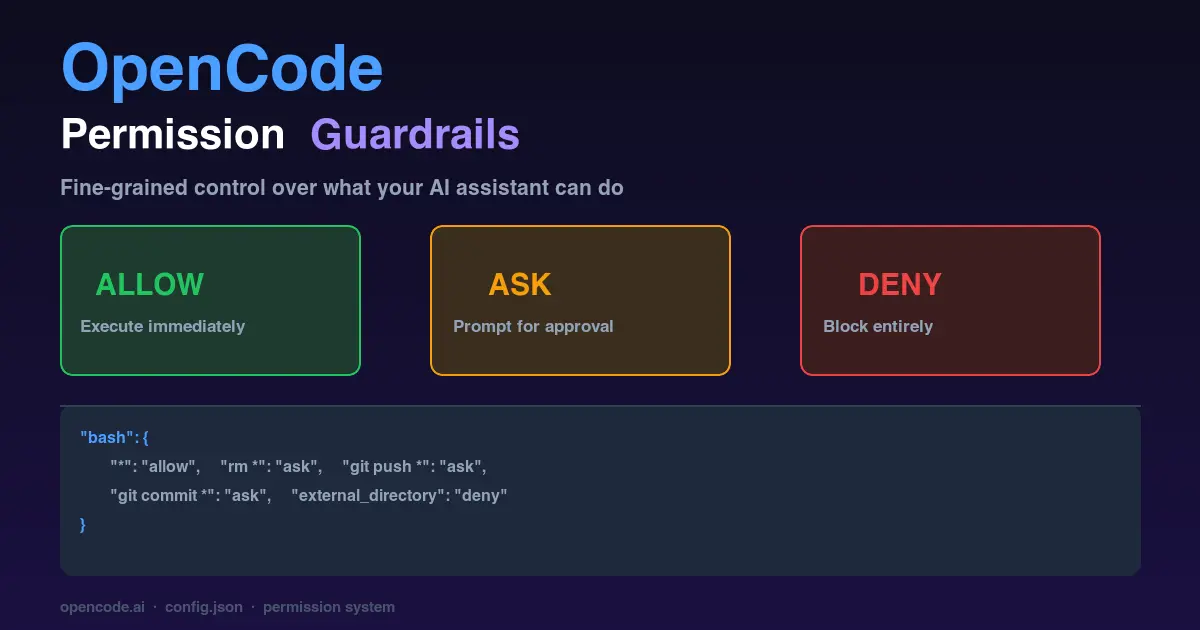
If you haven’t thought about permissions in OpenCode yet, I get it. You install the tool, it works, you start shipping faster. Setting up guardrails feels like yak shaving.
Then someone in the OpenCode community posted about their AI deleting their ~/Downloads folder. The agent was running a cleanup task and decided that folder was in scope. No prompt, no warning. Just gone. That story made me stop and actually read the permissions docs.
Here’s what I learned, and what I’ve been running ever since.
What can actually go wrong
The risk with AI coding assistants isn’t that they’ll go rogue. It’s that they’ll be helpful in the wrong direction. The model is optimizing for completing your task, and sometimes that means making decisions you’d have made differently yourself.
Common examples I’ve either hit or seen:
- Running
git pushbefore you’ve reviewed the full diff - Editing files outside the project you were working on
- The same failing tool call retrying in an infinite loop
- A destructive command that seemed like the obvious next step to the model, but not to you
None of these are malicious. They’re just overenthusiastic.
The three modes
OpenCode’s permission system gives every tool action a policy: allow, ask, or deny.
allow means run it, no questions. ask means show me the command first and wait. deny means don’t even try.
When you’re in ask mode and OpenCode surfaces a prompt, you get three options: approve once, approve always (for the rest of the session), or reject. The always option resets when you restart; it’s session-scoped, not permanent. That distinction matters more than you’d think. I’ve approved something with always, forgot about it, and let a session run for another hour with more access than I intended.
Where to put the config
Two places your opencode.json can live:
~/.config/opencode/opencode.json(global, applies to every project on your machine)./opencode.jsonin your project root (project-specific, overrides global)
I keep stricter defaults in my global config and loosen them per project. That way a weekend side project doesn’t accidentally have the same permissions as production code. Both JSON and JSONC (JSON with comments) work, include the schema line for editor autocomplete:
1{
2  "$schema": "https://opencode.ai/config.json",
3  "permission": {}
4}
The bash block is where most of the interesting stuff happens
Shell command execution is where all the real decisions live. The pattern matching rule is simple: last matching rule wins. Start with a catch-all, add specific overrides after:
 1{
 2  "permission": {
 3    "bash": {
 4      "*": "allow",
 5      "rm *": "ask",
 6      "git push *": "ask",
 7      "git commit *": "ask"
 8    }
 9  }
10}
One thing that tripped me up early: you need wildcards for commands that take arguments. "git" only matches the bare git with no arguments. If you want to gate all git operations, you need "git *". Took me an embarrassing amount of time to figure out why my rule wasn’t catching git commit.
File edits
The edit permission covers all file writes. You can lock it to specific paths:
1{
2  "permission": {
3    "edit": {
4      "*": "deny",
5      "src/**/*": "allow",
6      "test/**/*": "allow"
7    }
8  }
9}
For most projects I leave edit wide open and just review diffs before committing. But in a monorepo where you want the AI focused on one package, path-scoped edits are exactly the right tool.
MCP tools work the same way
If you’re using MCP servers like Jira, Slack, and GitHub, you control them with the same permission system, using the server name as a prefix:
1{
2  "permission": {
3    "jira_*": "ask",
4    "github_search_*": "allow",
5    "github_create_*": "ask"
6  }
7}
I learned this one by experience. An AI session with full Jira access will happily create tickets if it thinks that’s part of the task. One "ask" rule on the whole MCP namespace is a five-second change that saves real embarrassment.
Two safety nets you get for free
Beyond tool-specific rules, OpenCode ships with two guardrails that work across everything:
external_directory fires when any tool tries to access a path outside your current working directory. Default is ask. I set this to deny in my global config, because I almost never want OpenCode reaching outside the project I’m working in:
1{
2  "permission": {
3    "external_directory": "deny"
4  }
5}
doom_loop fires when the same tool call repeats three times with identical input. This catches agents stuck retrying the same failing operation. I leave it on ask, because I want to know when this happens, not have it silently stop or silently continue.
My actual config
Here’s what I’ve been running for the past few months. It’s the kind of thing you arrive at after a few sessions that didn’t go quite how you expected:
 1{
 2  "$schema": "https://opencode.ai/config.json",
 3  "permission": {
 4    "bash": {
 5      "*": "allow",
 6      "rm *": "ask",
 7      "git commit *": "ask",
 8      "git add *": "ask",
 9      "git push *": "ask",
10      "gh pr comment *": "ask",
11      "gh issue comment *": "ask",
12      "gh pr review *": "ask",
13      "chezmoi apply *": "ask",
14      "chezmoi add *": "ask",
15      "chezmoi re-add *": "ask",
16      "chezmoi destroy *": "ask",
17      "chezmoi purge *": "ask",
18      "chezmoi update *": "ask",
19      "chezmoi forget *": "ask"
20    },
21    "edit": {
22      "*": "allow"
23    }
24  }
25}
The logic: most commands run freely: builds, tests, linting, installs. I want a prompt before anything gets deleted (rm *), before git touches anything remotely (add, commit, push), and before the GitHub CLI posts on my behalf (gh pr comment, gh pr review). The chezmoi rules are personal; chezmoi manages my dotfiles, so a slip there could modify configs across my whole machine, not just the current project.
File edits stay open. I’d rather review a diff than be interrupted on every write.
One thing worth knowing
The permission system also applies to external_directory access at the tool level, which means setting it globally once is cleaner than repeating it per project. If you set deny globally and then wonder why OpenCode can’t reach something it needs, that’s probably why. Adjust per project when you have a legitimate reason.
The full config schema is at opencode.ai/docs, worth a skim once you have the basics down.
Happy coding!